
A simple guide to making a useful home ed report (with examples)
A home education report can be useful for your own records, for sharing with family, or for responding to local authority enquiries about your child’s home education.
This knowledgebase article explains what to include in a home education report, and how to create one using Strew:
Home Education Reports
- What is a home education report?
- What should you include?
- How long should it be?
- Creating a report in Strew
- Home education report tips
What is a home education report?
A home education report is a written summary of your child’s learning. It usually explains what they have been doing, what they are interested in, what progress they have made, and how their education is being supported.
It does not have to look like a school report. Home education can be flexible, practical, child-led, project-based, structured, informal, or a mixture of all of these.
A good report should simply help someone understand the education your child is receiving.
What should you include?
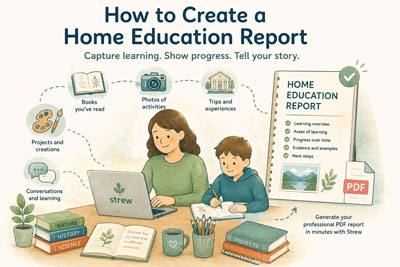
There is no single required format, but many home education reports include:
- A short introduction to your child and your home education approach
- Examples of recent learning activities
- Subjects or areas of learning covered
- Books, projects, trips, clubs, conversations or practical work
- Progress made over time
- Any special educational needs or adjustments, if relevant
- Photos or examples of work, if you choose to include them
- A short summary of future plans or current interests
Try to show a broad picture of learning rather than listing every single thing your child has done, especially if it’s for a LA.
How long should a home education report be?
It depends what the report is for.
For your own records, a short summary may be enough. If you are sharing a report with a local authority, you may want to include more detail and examples so your provision is easier to understand.
As a rough guide, many useful reports are somewhere between 2 and 10 pages, depending on how much detail and evidence you want to include.
The aim is not to write as much as possible. The aim is to make the learning clear.
Creating a report in Strew
Strew helps you create a home education report from the activities you have already recorded in the app.
To create a report in Strew:
- Add your child’s learning activities over time.
- Include notes, photos, books, trips, projects or anything else you want to remember.
- Use Study Points to help organise learning into broad areas.
- Open the menu in the Strew app.
- Choose the Report option.
- Select the date range and filters you want to use.
- Generate your PDF report.
You can then save, share or print the report from your phone.
For more detailed app instructions, see our guide to generating and printing PDF reports.
Home Education Report Tips
> Keep it specific
Instead of saying “we did science”, give a short example: “We explored plant growth by planting seeds, observing roots, and comparing what happened with different amounts of light.”
> Include real-life learning
Cooking, budgeting, gardening, animal care, building, shopping, travel, conversations and problem-solving can all be meaningful parts of home education.
> Don’t try to recreate school
Your report does not need to prove that your child is following a school timetable or the National Curriculum. It should show that learning is happening in a way that suits your child.
> Record little and often
It is much easier to create a useful report if you log activities throughout the year, rather than trying to remember everything at the end.
> Use examples
Photos, short notes, book lists, project summaries and learning outcomes can make a report feel much clearer and more grounded.
Need a Home Education Report Template?
If you want examples before creating your own, you may find these pages useful:

If you have any questions, issues with Strew; printing or otherwise, please Contact Us. Likewise if you’d like a knowledgebase article on a specific Strew feature, just let us know!